
A quick intro so you know where I fit in the grand scheme of things. I've been involved with the design and manufacture of electro-mechanical systems for over 50 years. I'm not a wizard but I've worked with, and been taught by, some very powerful ones. Two of my specialities are electrical and mechanical measurements. The Prusa Core One is my first 3D printer. We have two Bambu printers at work and a constantly changing group of engineering co-op students from RIT who all seem to hold ninth degree black belts in 3D printing. We print small high precision parts in various materials, some of which required extensive tweaking to print well. I'm at the beginning of my personal 3D printing journey, a bit clueless, but with a very good idea of what can be achieved and what high quality 3D parts look like.
I'm a tool snob and the tools that Prusa supplies are much better than expected. That said, the most common screws used in the printer are M3 socket heads that use 2.5 mm hex keys. Because many thread into plastic, forming their own threads, you'll want a proper 2.5 mm hex wrench with a handle. If you have a handle that accepts interchangeable hex tips, that would work fine. There will be various times you will want to use the Prusa-supplied ball-end hex key, but the handle tool will help you keep screws straight as you drive them in. It will also save your finger tips. A ball end key is normally intended for easy assembly and adjustment, but not for final tightening. In this case it doesn't matter because you'll be screwing into plastic or into sheet metal, both of which are easy to strip out. Use extreme care not to overtighten any screws in the printer! You should also keep a small metric ruler handy for measuring screw lengths and wires lengths, if you have one.
The box is awkward, weighs over 60 lbs, and only the young and strong should be carrying it around. It has side straps, but mine were both broken off, probably because they couldn't handle the load. Since everything is packed in separate boxes, I found it more convenient to just open the big box and carry the smaller boxes down to my hobby room in several trips.
Prusa recommends a 60" x 60" area, but they've obviously never seen my house! The printer was getting assembled where it was going to live because that was the available space, about 30" wide and a bit deeper. I stacked the boxes on the floor and a chair around me. I used a small plastic tray (cold cuts) for the hardware bags as I opened them. Do not open anything before you need it. Everything is labeled and the instructions will refer to the labels, so keep the larger bags in their boxes and keep the smaller bags in their larger bags until use. As you clip a corner off the various bags of screws, set the bag in a tray so it doesn't spill and you can reach it again quickly. Prusa has set you up for success, don't thwart their efforts.
You will want a laptop with an Internet connection at hand. Use the online assembly instructions because there will be times that you'll need to see the high resolution versions of the photos. Some will certainly use a phone, but I'm not that much of a masochist.
My assembly and use area.

People claim to have assembled this in 9 hours. If you have a life and a job, you'll want to spread it out a bit. It took me an entire week because I only worked on it a couple hours a day. Don't work when you're tired as you'll likely make mistakes. This is not something where you want to go back and take it apart if you can possibly avoid it. Credit to Prusa and their good instructions, everything worked when I first powered it up.
The powder coat on the metal parts is strong and durable. Many components are attached through printed plastic parts. Panels are attached with plastic rivets. The end result is there is almost no electrical continuity between, well, anything, unless they specifically added a ground wire. They did do that in a couple places. You will see reports of occasional crashes, reboots and strange sensor readings. I believe this is the result of poor electrical shielding. Some have suggested scraping a small area of the powder coat away under the motor mounting screw heads, but the motors are mounted with an insulating plastic spacer, so I don't see how this helps. What would help is adding a ring lug and wire between the motors and frame to tie everything together. Scraping under screws and checking with an ohmmeter to be sure all the frame parts have continuity would also be needed. The caveat is I have not tried this and there's always a risk of it causing some other unforseen problem. So far, the only time I've seen a problem is while loading a build plate; I touched it lightly to the rear lead screw. The system instantly shut down and rebooted. I can only assume I was carrying a slight static charge that found its way into the system via the rear motor. I bring this up here because if you want to address the issue it's best done during the initial build. I don't want to instill FUD (fear, uncertainty & doubt), so if you decide to do nothing, that's OK too. The printer should work just like the rest.
These comments are for the on-line assembly instructions, version 1.00, and future versions might be completely different! I've listed the chapter/page and title and sometimes which of the multiple photos to look at. Little here is significantly different than the Prusa instruction but sometimes the little things make a big difference in how easily things go.
1/10 Pro tip: Inserting the nuts: Take this as more than a tip. If the nuts are just pressed into the part, they can end up misaligned. If you draw them in with a screw, the subsequent assembly will go much better.
1/11 Important- Electronics protection: If you happen to have a ground strap, wear it! Keep the humidity up, don't wear wool and don't move quickly.
3/31 Covering the cooling fans: Do not slip the fan cables down the hole yet. They have to pass through another piece first, so leave them loose.
3/33 Installing the rear profiles: The accuracy of the Prusa sheet metal parts is excellent but there were a couple occasions where I needed to pull parts into position for the screws go in cleanly. Do not try to force screws as they will likely cross-thread. You may need to loosen nearby screws so other parts can shift, or get another person to install a screw while you force the parts into perfect position.
3/34 Mounting the back panel: Slip a small hex key in the center hole to lift the back slightly so the rivet will go in on each side, then do the center.
3/49 PSU Cover:parts preparation: This cover slips over the small protrusions where the screws are. You may want to chamfer the holes slightly to make installation easier. Be sure the wires are dressed properly so the cover will go on, as it can be near impossible to get out once inserted. If you have to get it out, but can't, use a 1/4"-28 tap on the left counter-bore, then use a 1/4"-28 screw to pull it out. You can also try loosening the power supply to create more clearance. The cover will seat square and parallel if no wires are pinched and it's properly installed.
4/16 Assembling the bed mounts: Insert a flat blade screwdriver in the slot to open up the bore slightly. This will make bearing installation much easier. When the bearing is installed you should be able to move it very slightly axially with your fingers, at least until you tighten the clamp.
5/6 XY carriage:parts preparation: You can avoid a lot of future problems if you check the linear holders with an inside square. They must be bent at exactly 90°. If they are not perfect, bend them until they are. Check them at the beginning of the section and check them again at the end if you have an outside square that doesn't interfere with the corner radius. Regardless, figure out some way to check and correct them if needed.
5/32 Linear rail:parts preparation: They aren't kidding with the warnings about the bearing rail safety stops. I deal with these things at work and if the carriage comes off the rails, some of the ball bearings will likely fall out. Even if they don't get lost, they are difficult to get back in and the bearing may never be quite right again. I was happy to see Prusa use a genuine THK bearing rail; they are not cheap and are very good.
5/36 Installing the linear rail assembly: This is a good view to see how the X travel wouldn't be square to the Y travel if the linear holders weren't square. X must operate square to Y.
5/49 Y belt guiding:belt tensioner: Try to get exactly 5 teeth on all belt ends. This will ensure that the belt tensioners are near the center of their range.
5/66 Installing the white LED assembly: The LEDs point inward to illuminate the chamber. Don't be a dimwit like me and try to install them pointing out!
5/74 Installing the CoreXY assembly: Be sure the rods are in the rod hole and the lead screws are in the lead screw holes. Once you attach the CoreXY assembly the lead screws are captured and less vulnerable to damage. At this point the printer is starting to gain weight and lifting it becomes risky to your back. Put a towel, cardboard or similar underneath the feet so you can rotate it on a smooth surface.
5/78 Guiding the cooling fan cables: You may want some small hemostats to help guide the wires through. It's necessary in many of these wire-through-the-hole instructions to have to carefully bend the wires of a connector sideways so the connector can go through the hole sideways, if that's the smaller dimension. Put the largest connectors through first. Worst case, if the grommet doesn't remove itself, you may have to remove it from the hole, run the cables through it and the hole, then slip the grommet back into the hole.
6/10 Checking the PG-assembly: I found the friction of the gears on the assembly fixture to be quite high and the assembly didn't rotate well. It otherwise seemed fine. I suspect the fixture is to prevent the possibility of a gear being one tooth off and force not transferring equally through both gears. The biggest problem was everything wanted to slide apart in my hands while trying to put it together. Just take your time and if everything seems free and smooth, and the fixture drops on and off easily, it should be fine.
6/32 Guiding the main cable: What you do here will profoundly affect your happiness later in the build. IMO, Prusa should have made the main cable about 40 mm longer. Since they didn't, you need to dress the cabling as perfectly as possible, not wasting a millimeter. The area around the Nextruder is also crowded with cables and everything needs to be as compact as possible so the covers will go on. Make sure the main cable goes smoothly around the first edge as shown on 6/32 and 6/33. Ideally, it should be a bit more compact than they show. While the cable is straight, adjust the wires in the textile sleeve as needed to keep things as compact as possible at the Nextruder end.
6/34 Swingarm parts preparation 1: Just noting that the o-ring on the tubing fitting is a pain. It usually ends up squeezed in the hole in the Loveboard mount and I'm not sure it's really necessary.
6/36 Guiding the main cable: I don't know how much that printed cable clamp can bend before it breaks, but better safe than sorry. Open it only as much as needed to slip the wires in one or two at a time, then slide it up the textile sleeve. Don't be too concerned about tightening it to the chassis right now as significant cable adjustment will almost certainly be needed.
6/38 Attaching the LoveBoard assembly: Look at the stepper motor wires in the picture coming off to the left so they can reach their connector. Make sure they are still pointed left when you attach the LoveBoard assembly or you'll be taking it apart again. Don't ask me how I know this.
6/43 Checking the movement: The cable routing into the xBuddy Box will determine this and there's not a lot you can do about it. Expect it to be a bit tighter than ideal.
6/50 Connecting the hotend cables: It's difficult to get the cables into the slot/clip and near impossible to get them to stay there. Use only soft plastic tools or cardboard to push them in. Metal tools risk damaging the insulation. Use extreme care not to break the fragile thermistor wires or you'll be out $64 (plus shipping) for a new hotend.
6/55 Covering the LoveBoard: This is tricky and is where your cable dressing skills will pay off. Don't pinch the wires and be sure the cover is fully seated.
6/56 Guiding the main cable: Hopefully the cable will route as shown. If not, you'll have to steal a little from the upper loop.
7/13 Assembling the side sensor base: Look at the third photo with the magnet sticking up. That's not going work, as the magnet will hit the cover. When you assemble the arm, push the magnet so it's flush against that side. It will stick out the other side, where there's clearance for it. See 7/15, third photo. Both magnets have to be completely flush, not sticking up a bit like shown! (The Core One Plus is a bit different.)
7/26 Installing the NFC Coil: 2nd photo. Be very careful with the connector alignment here. The force required to snap these together is surprisingly high. A plastic rod with a flat end makes a handy push tool.
7/35 Right side parts preparation: Both my side covers had a bent corner. If you have bent corners, use your hands and/or an adjustable wrench to bring them back flat. They are easy to bend.
7/39 Mounting the handle: It's awkward getting the side filament sensor attached to the panel/handle. It may help to put a folded towel under the panel to support it at the right height.
7/40 Fixing the right side: Use hex key trick- align the lower section by levering the center hole with a small hex key so you can install the rivets on either side. Then do the center.
8/5 Assembling the top cover 1: The vent can be assembled to open either to the left or to the right. I don't think it matters which, though the Core One+ upgrade might be specific.
8/31 Installing the door-hinge-out 1: The hinge pins may not be a tight fit and can slip down. If the pins are sticking out on the top or bottom, you won't be able to slide the Plexiglass door into the slot. Poke the pins up or down until you can. They don't come out and say it, but it's the door itself that keeps the pins in place. Once the door is installed, the pins can't escape. The hinges flex against the chassis to keep the door open. I don't know how those surfaces do long term but it seems like some type of wax or lubricant might be in order, or possibly a self-adhesive low friction wear strip.
8/36 Assembling the door handle: This was my only case of a part having a significant defect. When my door handle was folded during manufacture, it also developed a bow along the length. Thus, the handle won't seat against the door, except at the middle, leaving the top and bottom out of contact with the edge of the door. The result is the door won't fully close because the top and bottom hit the printer frame. I don't know if this is common but I would not have attached the handle if I had realized it. Check your door handle against any long straight edge or surface.
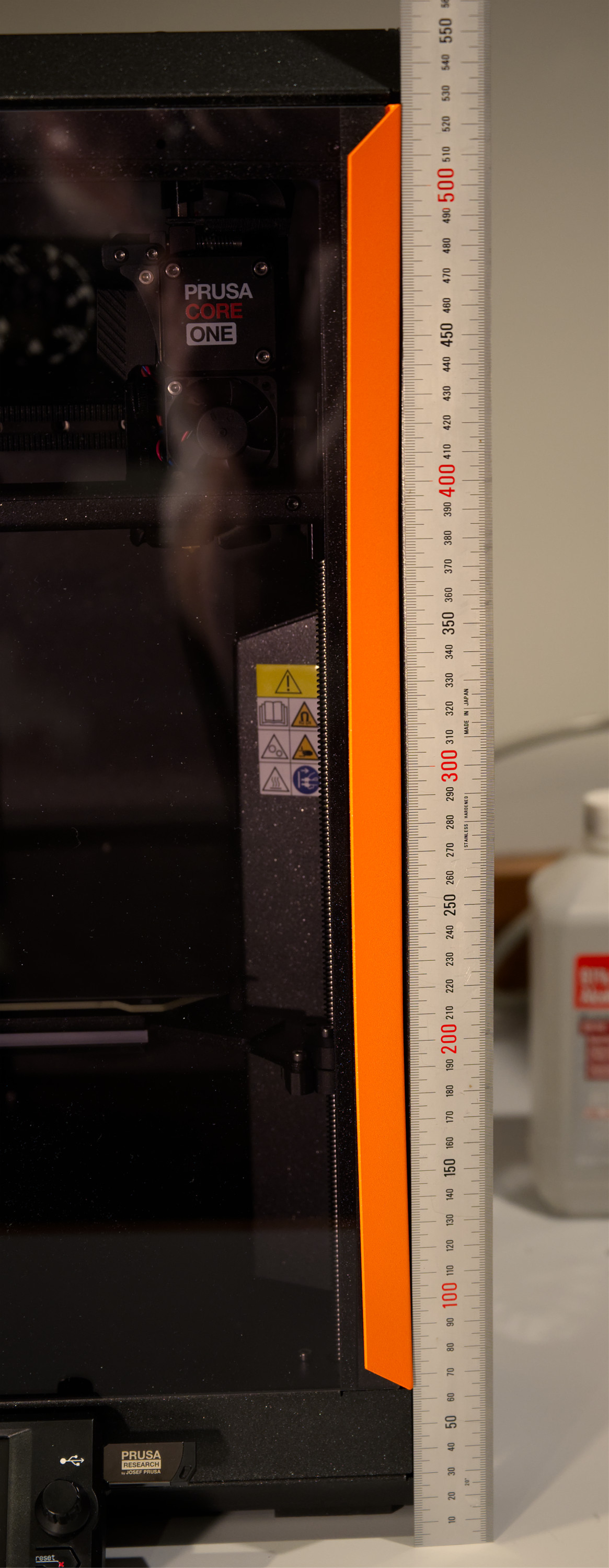
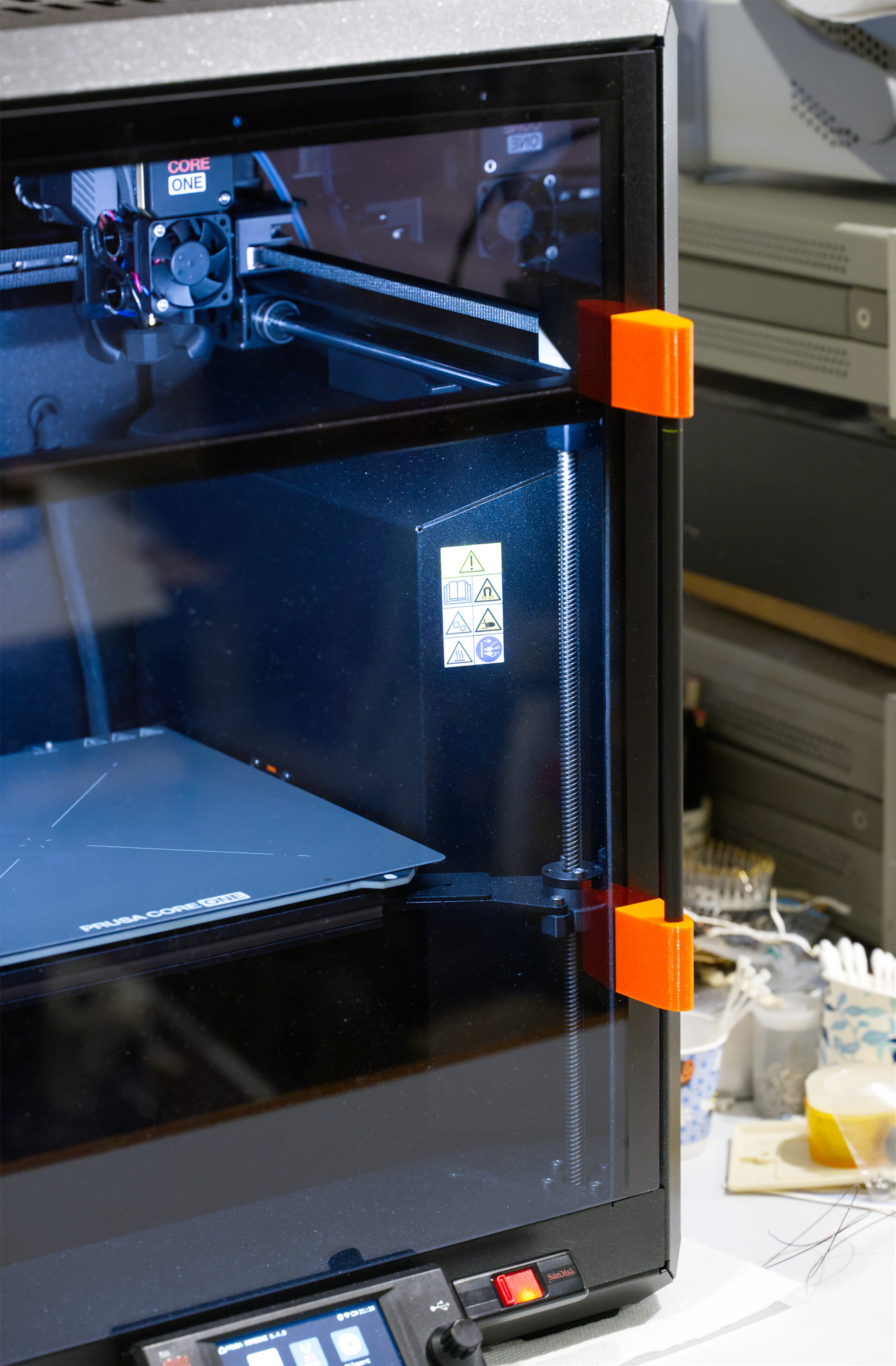
I thought it might be possible to print some wedge tools, block the handle up and bend it straight. It was a nice thought, but doesn't work. Because it's a folded part, the front and back want to buckle before the bow can be removed. Thinking that getting a replacement part would just be an annoyance for both me and Prusa, I printed up a couple new blocks and installed a new design handle. It uses a length of steel pallet strapping on the back so the magnets still work. So far this has worked great.
I had butterflies on first power-up and you probably will too. There's nothing to be done about it, the printer will either work or it won't. If you've done everything by the book, the odds greatly favor the former. First, you need firmware 6.4.0 or later. My flash drive had older firmware and 6.4.0 or later has the belt tuning utility. You need it, so make sure the latest firmware is on the flash drive. Follow the instructions on the Prusa website. Hopefully, when you power up, the display will indicate that the new firmware is being installed, which can take a couple minutes. If it doesn't install or you have some other issue, you'll have to troubleshoot. Follow Prusa's instructions.
You should print the Prusa keychain that's on your flash drive as a quick first test. You may decide to print the Benchy_Bonkers but remember this is a speed demo. It prints in 8 minutes and will look OK, but if you want a real Benchy, download an original stl file and slice it yourself for 0.15 or 0.2 layers with the Prusa "balanced" profile. It should take about 20-30 minutes and look much better than Bonkers.
C. Hoffman
January 22, 2026
Last edit January 27, 2026